Three ways to shoot yourself in the foot with Google Cloud Run
This post is an expansion of a comment I made on HN recently and continues my Extreme Learning series. Previously I discussed how I’ve managed to break production with Redis, with PostgreSQL and with healthchecks. Now I’ll show you how I did it with Cloud Run too.
For context, we migrated from Managed Instance Groups to Cloud Run at work last year. Cloud Run promises to simplify your production infrastructure and mostly we found that to be true. But we also discovered some hidden gotchas that can catch you out if you’re not paying attention.
1. Use websockets without changing the default request timeout
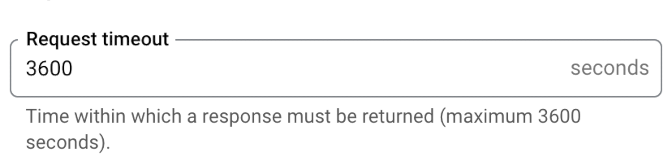
By default, Cloud Run terminates inbound TCP connections after 5 minutes. If you’re doing anything that uses a long-running connection, communicating via a websocket for example, you’ll want to change that setting. Otherwise at best you’ll have lots of reconnection overhead and at worst you’ll have weird bugs in production that nobody can reproduce in local.
The upper limit on connections in Cloud Run is one hour, so you’ll need proper reconnection logic on clients if you’re running longer than that. (but you should have proper reconnection logic regardless of course, because you’re working over the internet)
If you’re changing this setting in the GCP web console, it should look like this:
Or if you’re using Terraform,
you should set timeout = "3600s"
in the cloud_run_v2_service resource.
2. Ignore the difference between first and second generation environments
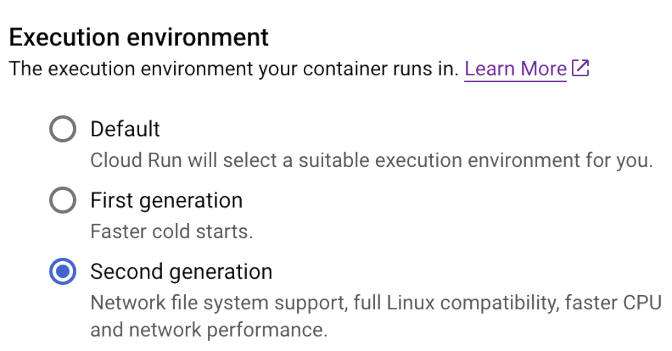
Cloud Run has two separate execution environments, each with its own tradeoffs. The first generation environment emulates Linux (imperfectly) and has faster cold starts. The second generation runs on real Linux and has faster CPU and faster network throughput. If you don’t specify a choice, it defaults to first generation.
For our part, we valued faster network throughput so opted for second generation. That setting looks like this in the web console:
For terraform we set
execution_environment = "EXECUTION_ENVIRONMENT_GEN2".
3. Don’t pay attention to autoscaling settings
With the default settings in place, Cloud Run will autoscale up when CPU usage reaches 60% and scale down to zero when there’s no traffic. You may want to change both of those depending on your usage.
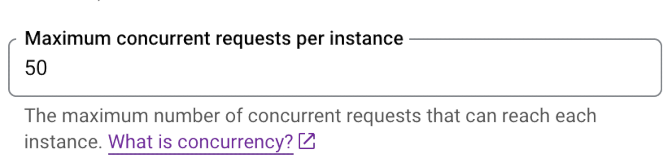
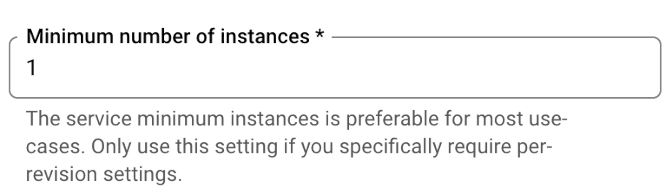
In our application, CPU usage turned out to be a suboptimal metric for scaling up, so we tweaked the maximum number of concurrent requests to compensate. We also have periods of very low activity at weekends, so set the minimum instance count to 1 to eliminate cold starts.
Here are those settings in the web console:
In terraform those settings are
max_instance_request_concurrency = 50
and scaling { min_instance_count = 1 }.